 Fluentd
Install by .msi Installer (Windows)
The recommended way to install Fluentd on Windows is to use MSI installers of td-agent.
What is td-agent?
td-agent is a packaged distribution of Fluentd.
- Includes Ruby and other library dependencies (since most Windows machines don't have them installed).
- Includes a set of commonly-used 3rd-party plugins such as
out_es. - Originally developed by Treasure Data, Inc (hence the name).
Currently two versions of td-agent are available.
td-agentv4 packages Fluentd 1.11.x (or later). This version is recommended.td-agentv3 packages Fluentd 1.10.x (or below).
Step 1: Install td-agent
This article contains deprecated td-agent (EOL) information: SHOULD NOT use td-agent anymore.
- As Drop schedule announcement about EOL of Treasure Agent (td-agent) 4, recommend to Upgrade to fluent-package v5.
- Package archive was migrated from packages.treasuredata.com to fluentd.cdn.cncf.io.
Download the latest MSI installer from the download page. Run the installer and follow the wizard.
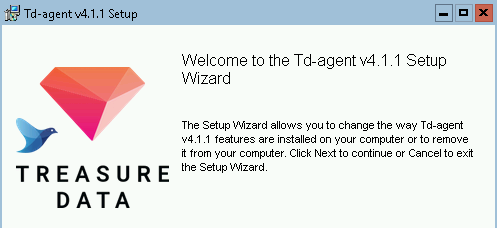
Alternatively td-agent can be installed with winget:
> winget install td-agent
Step 2: Set up td-agent.conf
Open C:/opt/td-agent/etc/td-agent/td-agent.conf with a text editor. Replace the configuration with the following content:
<source>
  @type windows_eventlog2
  @id windows_eventlog2
  channels application
  read_existing_events false
  tag winevt.raw
  rate_limit 200
  <storage>
    @type local
    persistent true
    path C:\opt\td-agent\winlog.json
  </storage>
</source>

<match winevt.raw>
  @type stdout
</match>
Step 3: Launch Td-agent Command Prompt
Open Windows Start menu, and search Td-agent Command Prompt. In most environments, the program will be found right under the "Recently Added" section.
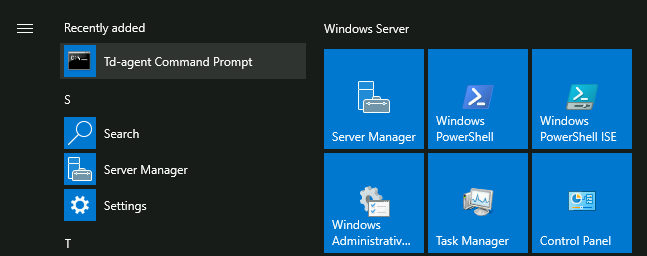
Td-agent Command Prompt is basically cmd.exe, with a few PATH tweaks for td-agent programs. Use this program whenever you need to interact with td-agent.
Step 4: Run td-agent
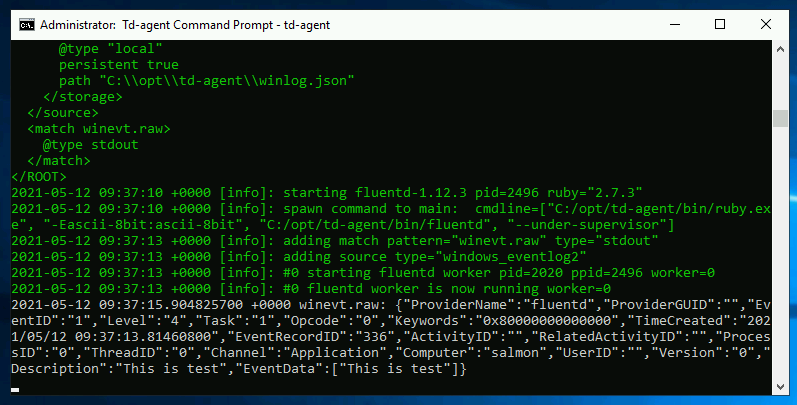
Type the following command into Td-agent Command Prompt:
C:\opt\td-agent> td-agent
Now td-agent starts listening to Windows Eventlog, and will print records to stdout as they occur.
Step 5: Run td-agent as Windows service
Since version 4.0.0, td-agent is registered as a Windows service permanently by the msi installer. You can start td-agent service manually.
Using GUI
Please guide yourself to Control Panel -> System and Security -> Administrative Tools -> Services, and you'll see Fluentd Windows Service is listed.
Please double click Fluentd Window Service, and click Start button. Then the process will be executed as Windows Service.
Using net.exe
> net start fluentdwinsvc
The Fluentd Windows Service service is starting..
The Fluentd Windows Service service was started successfully.
Using Powershell Cmdlet
PS> Start-Service fluentdwinsvc
Note that using fluentdwinsvc is needed to start Fluentd service from the command-line. fluentdwinsvc is the service name and it should be passed to net.exe or Start-Service Cmdlet.
The log file will be located at C:/opt/td-agent/td-agent.log as we specified in Step 3.
Step 6: Install Plugins
Open Td-agent Command Prompt and use td-agent-gem command:
C:\opt\td-agent> td-agent-gem install fluent-plugin-xyz --version=1.2.3
Next Steps
You are now ready to collect real logs with Fluentd. Refer to the following tutorials on how to collect data from various sources:
- Basic Configuration
- Application Logs
- Examples
For further steps, follow these: